How to Set Up and Use Your NoveSIM eSIM
Get ready for mobile data abroad. Check your phone, choose a plan for your route and follow its installation instructions. Before adding the eSIM, confirm what starts your purchased plan’s validity.

Set Up Your Travel Data in Four Steps
Check Your Phone and Route
Confirm eSIM support for your exact phone model and regional version, and check that it is carrier-unlocked. Make sure the selected plan includes every destination where you need data.
Choose and Purchase Your Plan
Compare data allowance, validity, price and hotspot conditions. After purchase, find your eSIM details and installation instructions in your email and NoveSIM account.
Install as Instructed
Read what starts the plan’s validity before installing. Use reliable internet to add the profile by QR code or the manual details supplied with your purchase. Label it clearly so you can distinguish it from your home SIM.
Connect at Your Destination
At an included destination, enable the travel eSIM and select it for mobile data. Apply the supplied settings, including Data Roaming where instructed, then test a webpage with Wi-Fi off.
Installation Help for Your Phone
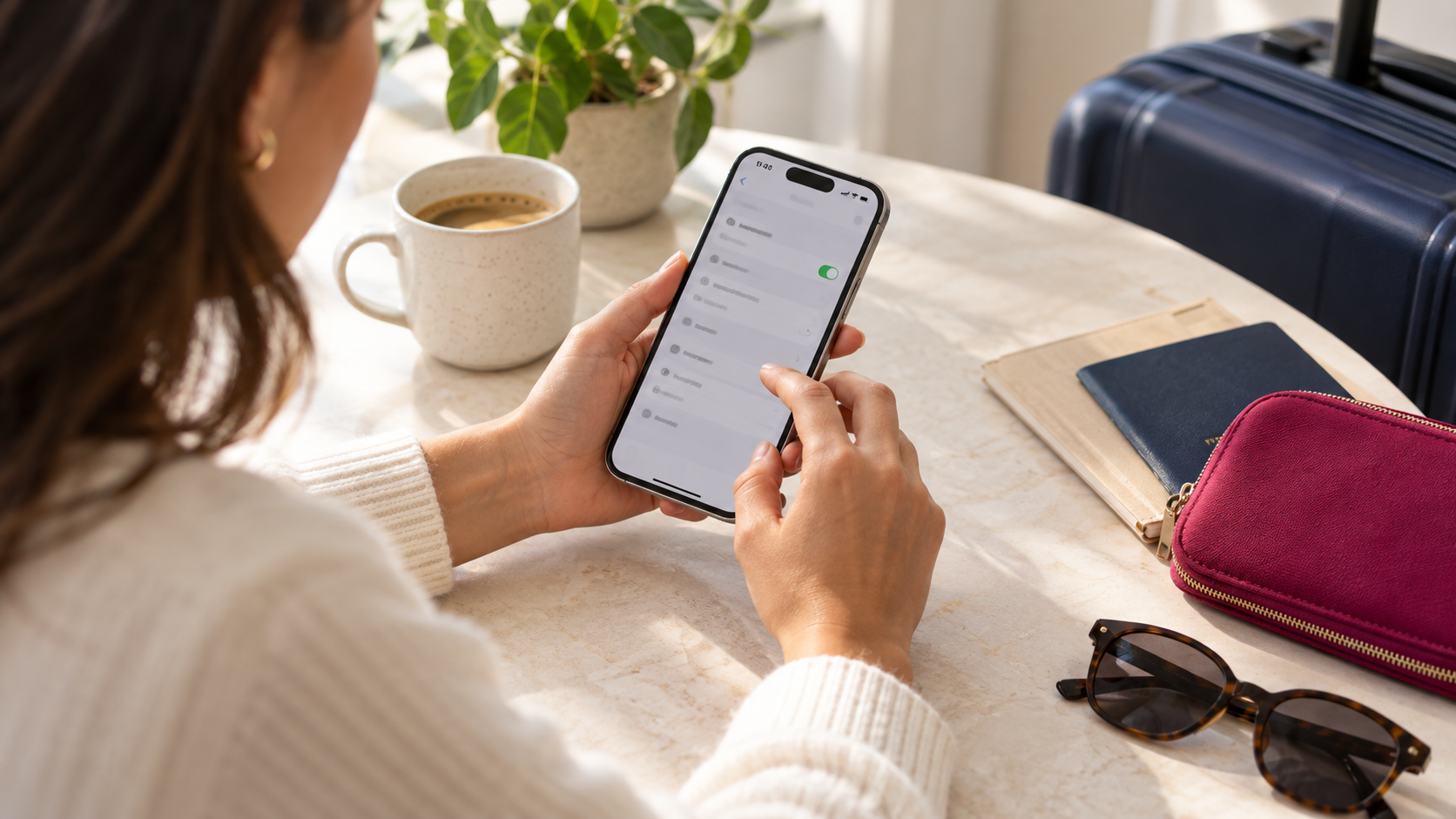
Set Up on iPhone
Open your cellular settings and choose Add eSIM. Follow the installation method supplied with your purchase. Menu names can vary by iOS version and region.
iPhone installation guide →
Set Up on Android
Open your SIM or mobile network settings and look for the option to add an eSIM. Menu names and installation options vary by manufacturer, model and Android version.
Android installation guide →Samsung Galaxy guide →Check Your Connection After Arrival
- Enable the purchased travel eSIM at an included destination.
- Select it as the mobile-data line.
- Apply its Data Roaming setting as instructed.
- Keep home-line data roaming off if you do not intend to use it, and review automatic data switching.
- Turn Wi-Fi off briefly and load a small webpage.
Keeping your home SIM active does not make its calls, SMS or voicemail free. Your home provider’s charges still apply.

Installed Your eSIM but Cannot Connect?
Keep the installed profile while checking the problem. Confirm that the package is valid, has data remaining and includes your current destination. Review the selected data line and supplied network settings, then contact us if you still cannot connect. Do not delete the eSIM unless support instructs you to.
Get Setup HelpQuestions About Setting Up Your eSIM
Where can I find my eSIM after purchase?
Can I install my eSIM before departure?
Should Data Roaming be on?
What if I cannot scan the QR code?
Does NoveSIM include a phone number or standard calls?
Ready to Choose Your Travel Data?
Check your phone, find your destination and compare plans for your travel dates.
Browse Destinations